RAM: Your Computer's Active Workspace
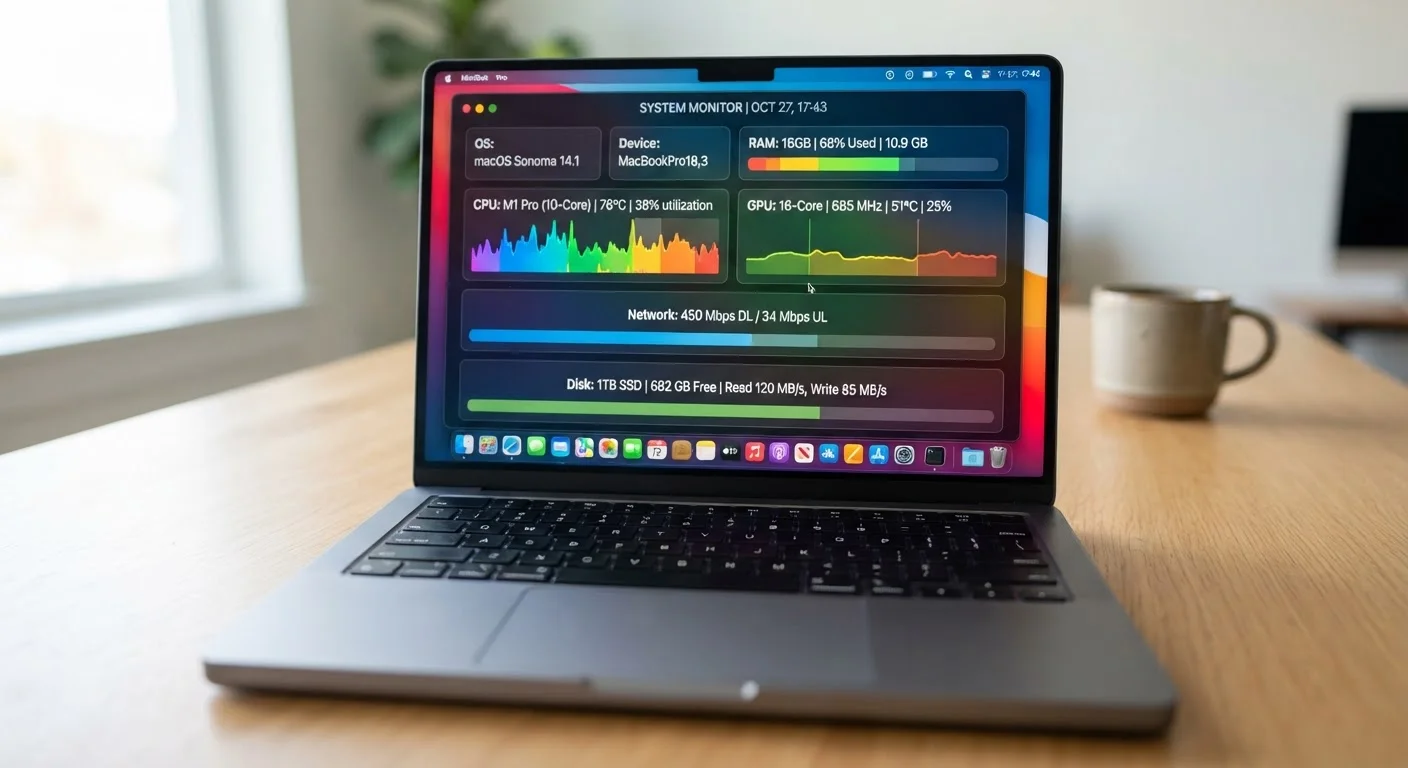
RAM — short for Random Access Memory — is the temporary workspace your computer uses while it is actually running things. When you open a browser, a spreadsheet, or a streaming app, that data loads into RAM so the processor can reach it instantly. The moment you shut down, RAM clears completely.
The practical takeaway: more RAM means more things can stay active at once without slowdown. Running out of RAM forces your computer to shuffle data in and out of storage, which is dramatically slower and is often what causes that frustrating lag when you have too many tabs open.
Common RAM amounts and what they suit:
- 8 GB: Comfortable for everyday tasks — email, documents, light web browsing.
- 16 GB: Suitable for heavier multitasking, video calls, and moderate creative work.
- 32 GB or more: Aimed at demanding workflows like video editing, 3D rendering, or running virtual machines.
Check RAM Upgradability Before You Buy
Many modern thin laptops solder RAM directly onto the motherboard, meaning what you buy is what you are stuck with. If you expect your needs to grow, verify whether the model you are considering allows RAM expansion — or choose a higher capacity upfront to avoid an upgrade dead end.
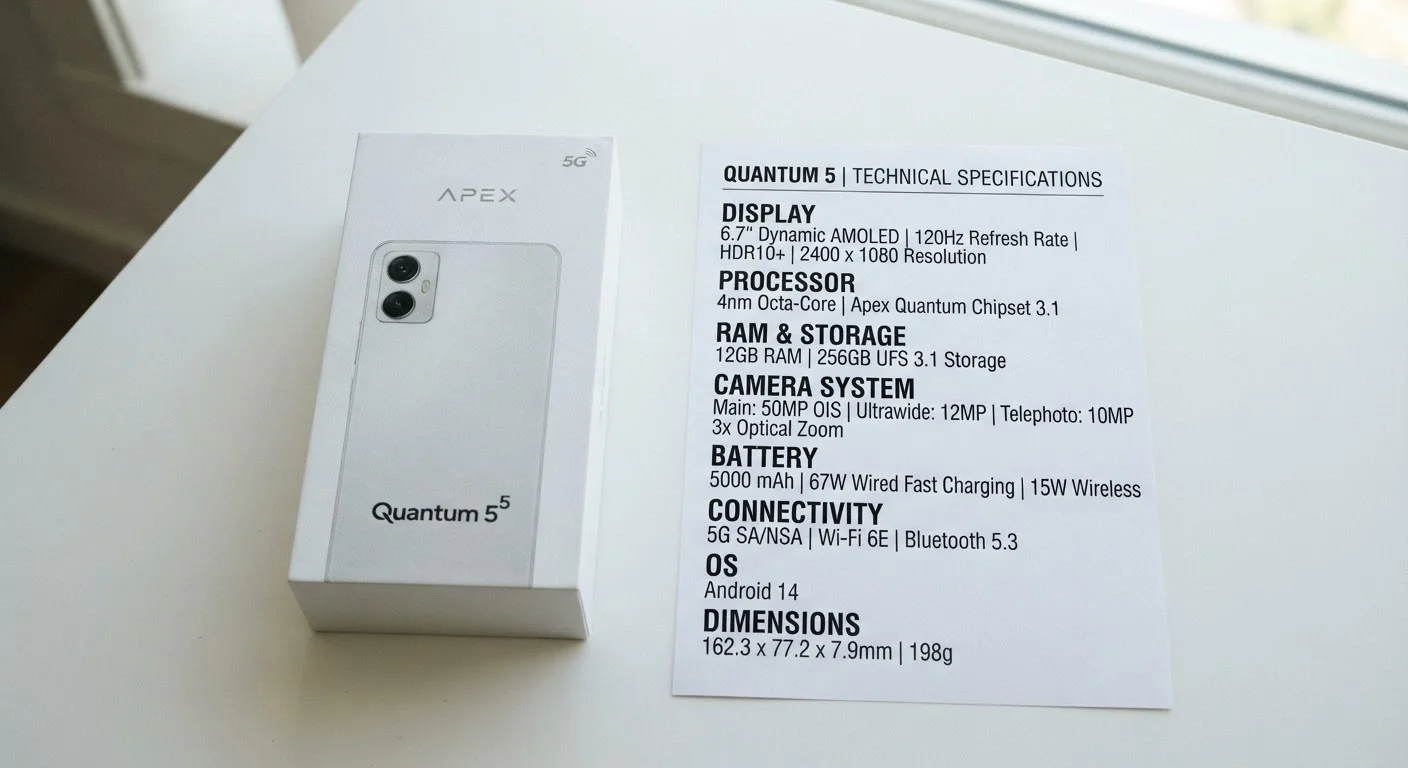
For a broader look at how these ideas apply to phones, see our smartphone specs guide, where RAM plays a similar but slightly different role.
Storage: Your Filing Cabinet, Not Your Desk
Storage holds everything that needs to persist — your operating system, installed apps, photos, documents, and downloads. Unlike RAM, storage retains data when the power is off. The two numbers you will see most often are capacity (measured in GB or TB) and type (SSD or HDD).
Capacity is straightforward: bigger numbers mean more room to save files. A terabyte (TB) equals roughly 1,000 gigabytes. For context, a typical photo takes 3–5 MB, and a full-length movie can range from 4 GB to over 50 GB depending on quality.
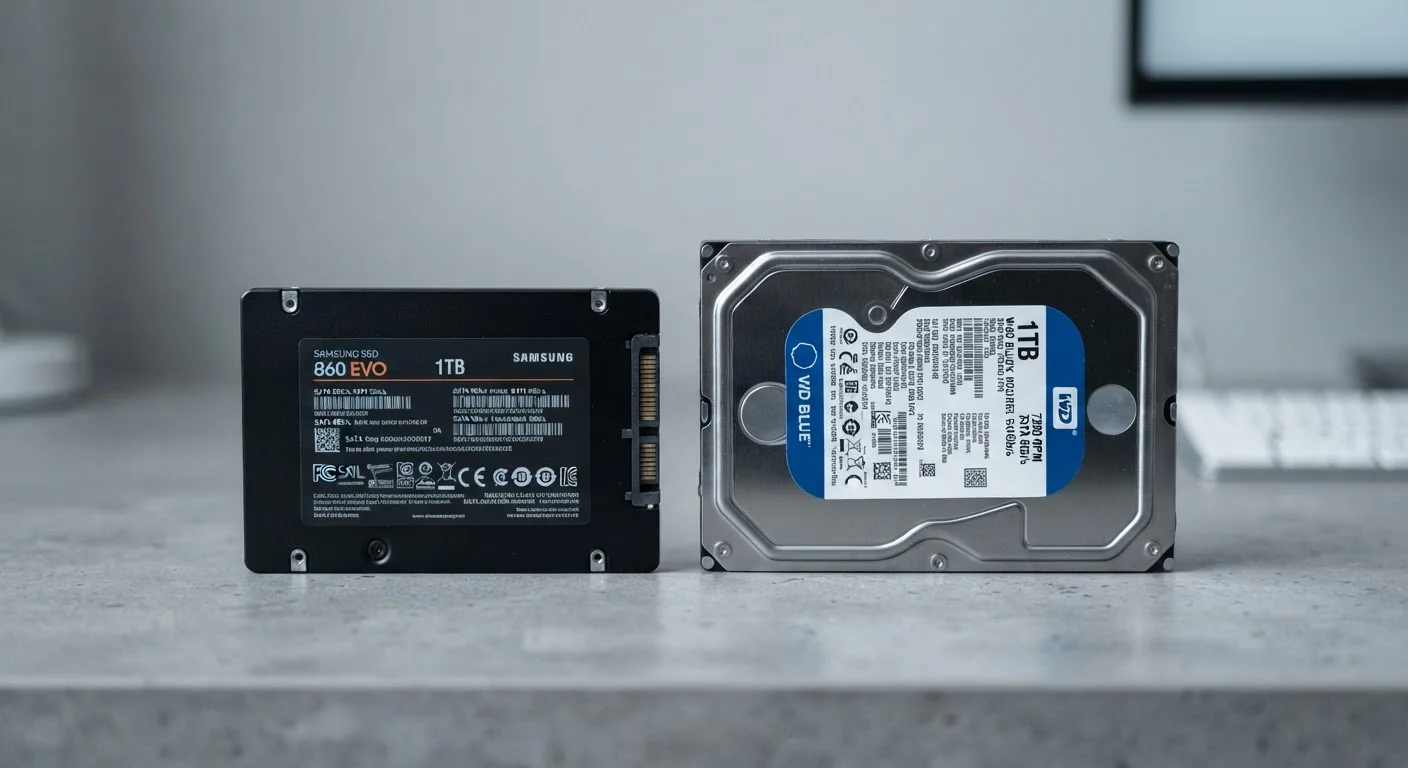
Type matters as much as size. Solid State Drives (SSDs) have no moving parts and retrieve data far faster than traditional Hard Disk Drives (HDDs), which use spinning magnetic platters. SSDs also run quieter, handle bumps better, and tend to use less power. For more on how these differ in practice, the SSD vs. HDD comparison walks through real-world trade-offs in detail.
~3×
Speed difference: SSD vs. HDD for app launches
Industry benchmarks consistently show SSDs opening applications several times faster than traditional spinning hard drives under comparable conditions.
16 GB
RAM considered a practical sweet spot for most users
Many tech analysts and system builders cite 16 GB as the point where most everyday and moderate workloads run without memory-related slowdowns.
8+ cores
Core count in many mainstream processors today
Modern mid-range desktop and laptop processors routinely ship with eight or more cores, making multi-core workloads far more accessible than they were a decade ago.
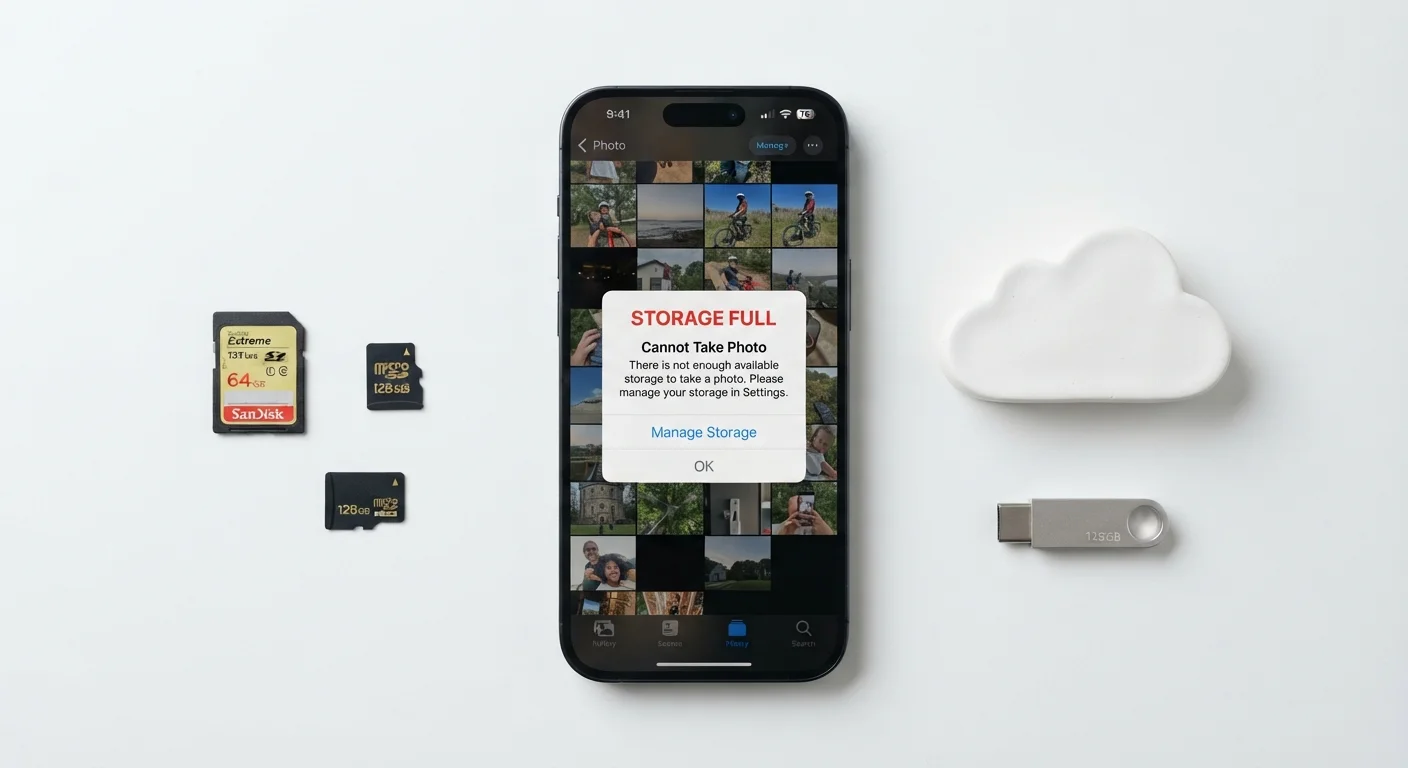
If you are weighing how much phone storage you need — a related but slightly different question — our article on storage sizes and cloud sync covers usage habits most buyers overlook.
Processing Speed: GHz and Cores, Explained
The processor — also called the CPU (Central Processing Unit) — is the brain of your computer. Two numbers describe how capable it is: clock speed (measured in GHz, or gigahertz) and core count.
Clock speed tells you how many processing cycles a single core completes per second. A processor running at 3.5 GHz completes 3.5 billion cycles per second. Higher is generally faster — but only when comparing the same architecture. A 3.5 GHz chip from one generation may outperform a 4.0 GHz chip from an older one because newer designs do more work per cycle.
Core count tells you how many independent processing units live on that chip. Dual-core, quad-core, and octa-core chips can each work on different tasks simultaneously. A single fast core handles sequential tasks well; multiple cores handle parallel workloads — think video encoding, running multiple apps, or heavy browser tabs — far better.
In plain terms: GHz is like the speed of a single worker; cores are like the number of workers. For most everyday use, a modern multi-core processor at a moderate GHz will outperform an older single-core chip with a higher clock speed.
“The best processor for most people isn't the fastest one — it's the one that's fast enough for what they actually do, paired with enough memory and a solid-state drive to keep things moving.”
— Tech & Gadgets Editorial Team, Editorial analysis based on industry hardware research
For a deeper look at how chips specifically shape phone performance, battery life, and heat, see how processor chips shape phone performance.
How These Three Specs Work Together
RAM, storage, and processing speed are not independent — they function as a team. A fast processor paired with insufficient RAM will still slow down under load. A generous amount of RAM on a computer with slow HDD storage will feel sluggish when opening apps or booting up. Matching all three to your actual use pattern is what produces a smooth experience.
Here is a simple framework for matching specs to needs:
| Use Pattern | RAM | Storage | Processor Priority |
|---|---|---|---|
| Email, web, streaming | 8 GB | 256 GB SSD | Any modern multi-core |
| Remote work, video calls | 16 GB | 512 GB SSD | Mid-range multi-core |
| Creative or technical work | 32 GB+ | 1 TB+ SSD | High core count |
It is also worth noting that high numbers on a spec sheet do not always translate to the best real-world experience. Software optimization, thermal management, and build quality all play roles. Our guide on spec sheets vs. real-world performance explores why the top number is not always the right choice.
For quick definitions of additional terms you will encounter while shopping, our computer specs glossary is a useful companion reference.
Specs Vary by Operating System Too
The same hardware can feel faster or slower depending on the operating system running on it. Some operating systems are more efficient with limited RAM; others are more demanding. When comparing computers, consider the OS alongside the raw specs — they work together to shape the real-world experience.