What's Actually Different Under the Hood
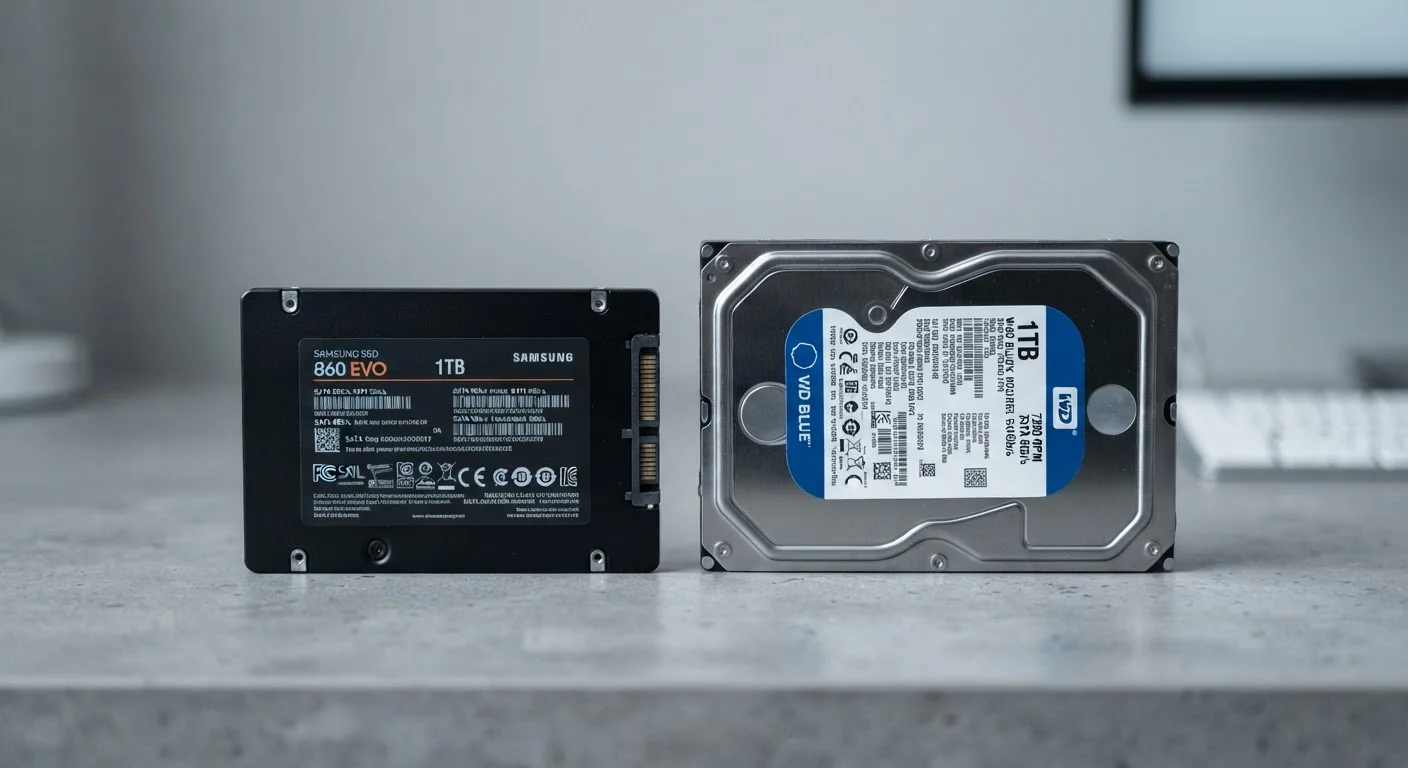
An HDD (Hard-Disk Drive) stores data on spinning magnetic platters. A tiny read/write arm sweeps across those platters to find and retrieve your files — much like a record player needle on a vinyl disc. That mechanical process works reliably, but it takes time and is vulnerable to physical shock.
An SSD (Solid-State Drive) stores data on flash memory chips with no moving parts at all. When you request a file, the drive retrieves it electronically — nearly instantaneously. That fundamental design difference is why the two drives behave so differently in everyday use, well beyond a simple speed comparison.
Understanding this distinction also helps make sense of other specs you'll encounter. As explained in our plain-English breakdown of RAM, storage, and processing speed, storage type shapes how quickly your entire system feels responsive — not just how fast files transfer.
Speed, Noise, and Heat: The Day-to-Day Differences
Speed is the most obvious gap. SSDs can read data several times faster than a typical HDD, which translates directly into faster boot times, quicker app launches, and snappier file transfers. If your current computer feels sluggish when starting up or opening programs, the storage drive is often a contributing factor.
Noise is a less obvious but equally real difference. HDDs produce a faint clicking or humming sound from their spinning platters — noticeable in quiet environments. SSDs operate in complete silence. For users who work in quiet offices or late at night, this matters more than spec sheets suggest.
Heat generation also differs. HDDs generate more heat through mechanical activity, which can affect system temperatures over time. SSDs run cooler under most workloads, contributing to a slightly more stable thermal environment inside your device.
3–5×
Typical SSD speed advantage over HDD
Consumer SSDs commonly achieve sequential read speeds several times faster than mechanical hard drives under standard workloads.
~10×
Cost-per-TB difference (HDD vs. SSD)
High-capacity HDDs have historically offered substantially more storage per dollar than equivalent SSD options, though the gap has been narrowing.
Durability, Lifespan, and When Things Go Wrong
Because HDDs rely on moving parts, they are more susceptible to physical damage. Dropping a laptop with a spinning hard drive — even briefly — while it is active can cause the read/write head to contact the platter, potentially corrupting or destroying data. SSDs have no such vulnerability; they handle drops and bumps with far greater tolerance.
That said, no storage drive lasts forever. SSDs have a finite number of write cycles — each memory cell can only be written to so many times before it degrades. For typical home or office use, this limit is rarely reached within the useful life of the device. HDDs can also fail mechanically without warning, often with no recoverable data.
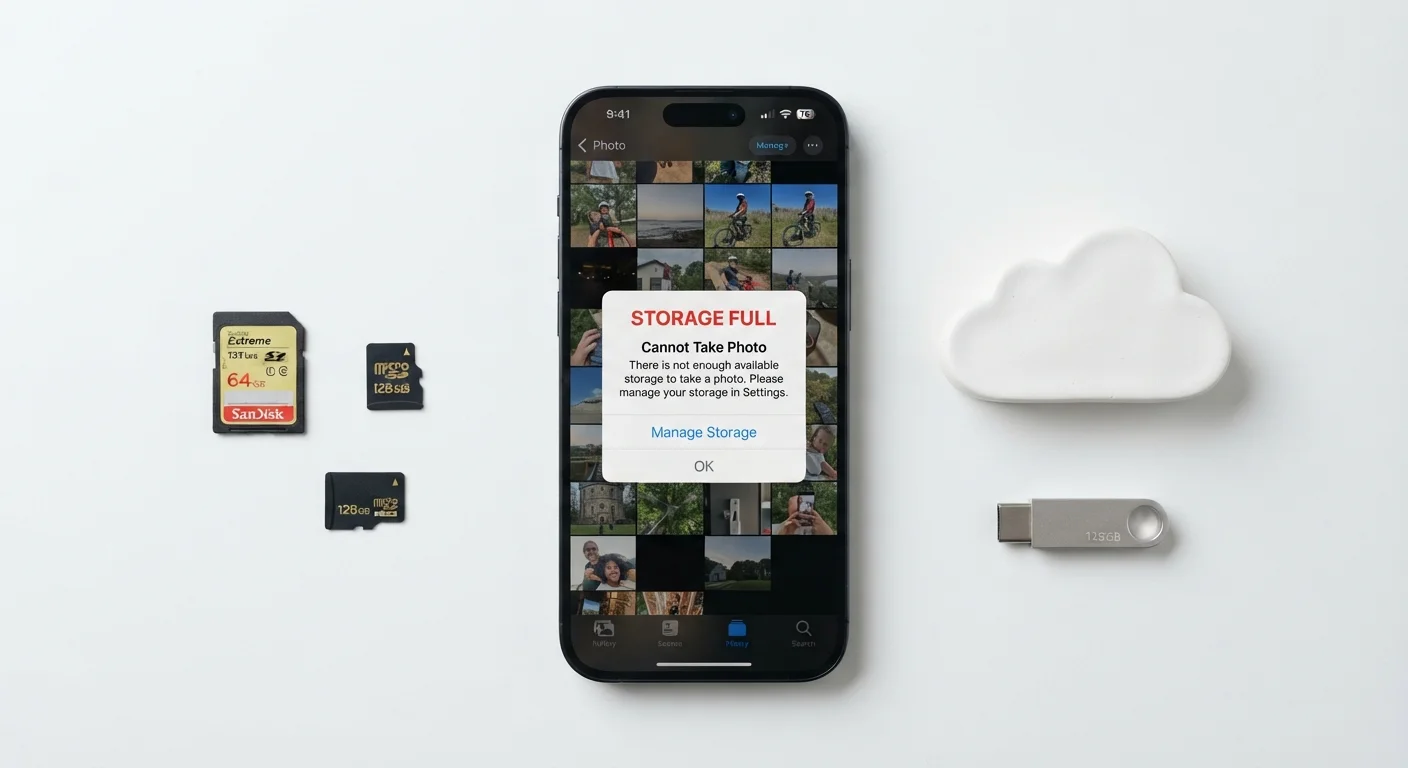
The practical takeaway: both types of drives can fail. Regular backups — whether to an external drive or cloud service — remain essential regardless of which storage type you use. See our related guide on storage, cloud sync, and what happens when space runs out for backup context that applies across devices.
Both Drive Types Can Fail Without Warning
Neither SSDs nor HDDs provide guaranteed data longevity. SSDs can fail suddenly due to firmware issues or power events; HDDs can fail mechanically with little notice. The safest approach is a consistent backup routine — storing important files in at least two places, including an offsite or cloud copy. No storage drive should be treated as your only copy of critical data.
Capacity, Cost, and Choosing What Fits Your Needs
HDDs remain competitive in one important area: storage capacity per dollar. A 4TB HDD typically costs significantly less than a 4TB SSD, making spinning drives a reasonable choice for users who need large amounts of storage — video editors archiving raw footage, photographers storing high-resolution images, or households backing up years of home videos.
SSDs have become increasingly affordable at common consumer capacities (500GB to 2TB), making them the practical default for most laptop and desktop purchases today. If raw storage volume matters less to you than everyday responsiveness, the case for an SSD is straightforward.
Many desktop setups split the difference: a smaller SSD holds the operating system and active applications for speed, while a larger HDD stores media and archives. This pairing captures advantages from both technologies without committing fully to either.
It's also worth remembering that storage type is just one factor in how a computer performs overall. Our article on why a high spec sheet doesn't always mean a better experience explains how all the components interact in real-world use.
| Criterion | SSD | HDD |
|---|---|---|
| Read/write speed | Very fast (electronic access) | Slower (mechanical access) |
| Moving parts | None | Spinning platters + read arm |
| Noise level | Silent | Audible hum or click |
| Shock resistance | High — no parts to damage | Low — vulnerable when active |
| Cost per terabyte | Higher | Lower |
| Typical capacity range | 256GB–4TB (consumer) | 500GB–20TB (consumer) |
| Heat output | Lower | Higher |
| Best primary use | OS, apps, active files | Bulk storage, archives |