Why Storage Fills Faster Than You Expect
When you buy a phone advertised as 128GB, you never actually start with 128GB of usable space. The operating system, pre-installed apps, and system files can consume anywhere from 10GB to 20GB right out of the box. What's left is your working budget — and it shrinks faster than most buyers anticipate.
Photos and videos are the biggest culprits. Modern smartphone cameras shoot in high-resolution formats, and a single minute of 4K video can occupy 350–400MB. A weekend trip with a few hundred shots can quietly erase gigabytes before you've noticed. Apps add up too: social media platforms, navigation tools, and games routinely consume 500MB to several gigabytes each — and they grow larger with updates over time.
System files also accumulate silently. Cached data (temporary files apps store to load faster), offline maps, downloaded podcasts, and app logs stack up in the background. Understanding where your space actually goes is the first step to managing it well. For a deeper look at how storage pressure contributes to sluggish performance, see our guide on why phones slow down over time.
Know Before You Buy: Picking a Storage Tier
As a rough rule of thumb: light users who rely heavily on streaming and cloud storage can often manage with 64GB–128GB. Average users who take regular photos and keep a full suite of apps generally find 128GB–256GB more comfortable. Heavy users — frequent travelers, content creators, gamers — often benefit from 256GB or more. Storage cannot typically be expanded after purchase on modern smartphones, so erring slightly higher at the time of purchase tends to pay off.
What Cloud Sync Actually Does — and Doesn't Do
Cloud sync is widely misunderstood. Services that automatically back up your photos and videos are saving copies of your files to remote servers — they are not removing anything from your phone unless you take an additional step to delete local files after the backup completes.
On most platforms, you can enable a setting that removes the locally stored original once a cloud copy is confirmed. This is often called "free up space" or "optimize storage." When you open a photo that has been moved to the cloud, the app downloads a compressed preview instantly and retrieves the full file on demand. This workflow works well on a reliable Wi-Fi or cellular connection, but it does require active internet access to view full-resolution content.
A Full Phone Is More Than Just Inconvenient
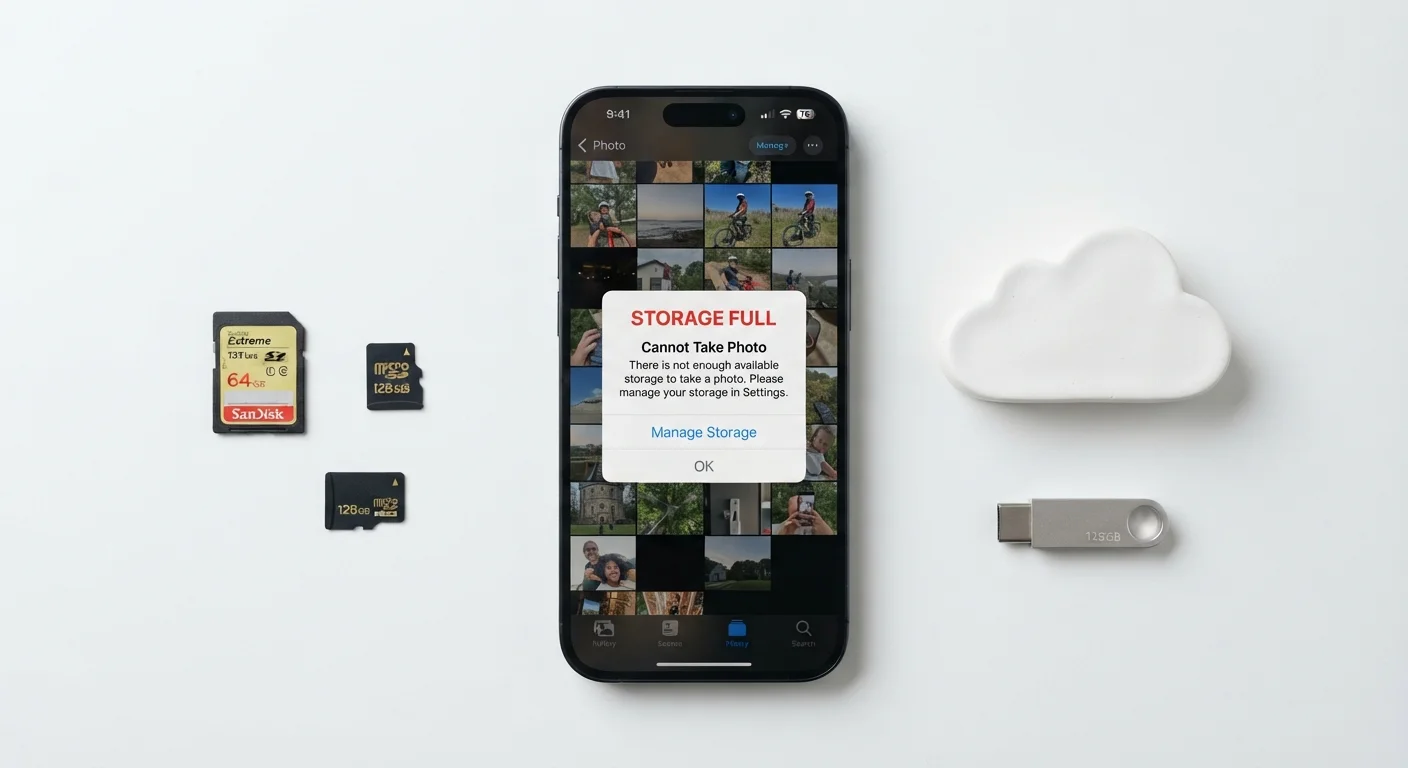
When on-device storage drops below a critical threshold — often around 1–2GB free — phones begin to malfunction in noticeable ways. Apps may crash, the camera may refuse to save new photos, and system updates may fail to install. Chronically low storage also forces the operating system to work harder, which can contribute to slowdowns over time.
It's also worth noting that cloud storage plans have their own tiers and limits. Free allowances vary by platform and can fill up, at which point new uploads stop until you either delete old files or upgrade your plan. Cloud sync is a powerful tool, but it works best as part of a broader storage strategy, not as a replacement for understanding your on-device needs. See also: what storage numbers actually mean in plain English.
How to Audit and Reclaim Your Phone's Storage
Before buying more cloud storage or upgrading your phone, run through these steps to see exactly where your space is going and recover what you can. If you're already thinking about a new device, our smartphone upgrade checklist is a useful companion.
Check your storage breakdown
Go to your phone's Settings and look for Storage or General > iPhone Storage (on iOS). Both Android and iOS display a visual breakdown showing which categories — apps, photos, system, other — are using the most space. Screenshot this screen so you have a baseline before making changes.
Delete unused apps and their data
Uninstall any app you haven't opened in the past 30 days. On iOS, you can offload an app — this removes the app binary but keeps its data, which is useful if you want to reinstall later. On Android, tap an app in storage settings and select Uninstall or Clear Storage to remove all associated data.
Enable cloud backup, then remove local originals
Open your cloud photo service and confirm your library has fully synced (look for a "backup complete" or equivalent status message). Once confirmed, use the platform's free up device storage option. This removes full-resolution originals from the device while keeping them accessible in the cloud.
Clear app cache and downloaded content
Streaming apps — music, podcasts, video — often store large offline downloads you may have forgotten about. Open each streaming app, navigate to its Downloads or Offline section, and delete content you no longer need. For general cache, Android lets you clear it per-app via Settings > Apps. iOS manages cache automatically, but deleting and reinstalling an app clears its cache manually.
Adjust camera settings to reduce file sizes
If you rarely view photos at full resolution, consider switching from the highest camera quality setting to a slightly lower one. Many phones now shoot in formats like HEIF or HEVC, which deliver good quality at roughly half the file size of older JPEG and H.264 formats. Check your camera's Formats or Video Quality settings to see what options are available.