Laptop vs. Desktop: Starting with the Right Form Factor
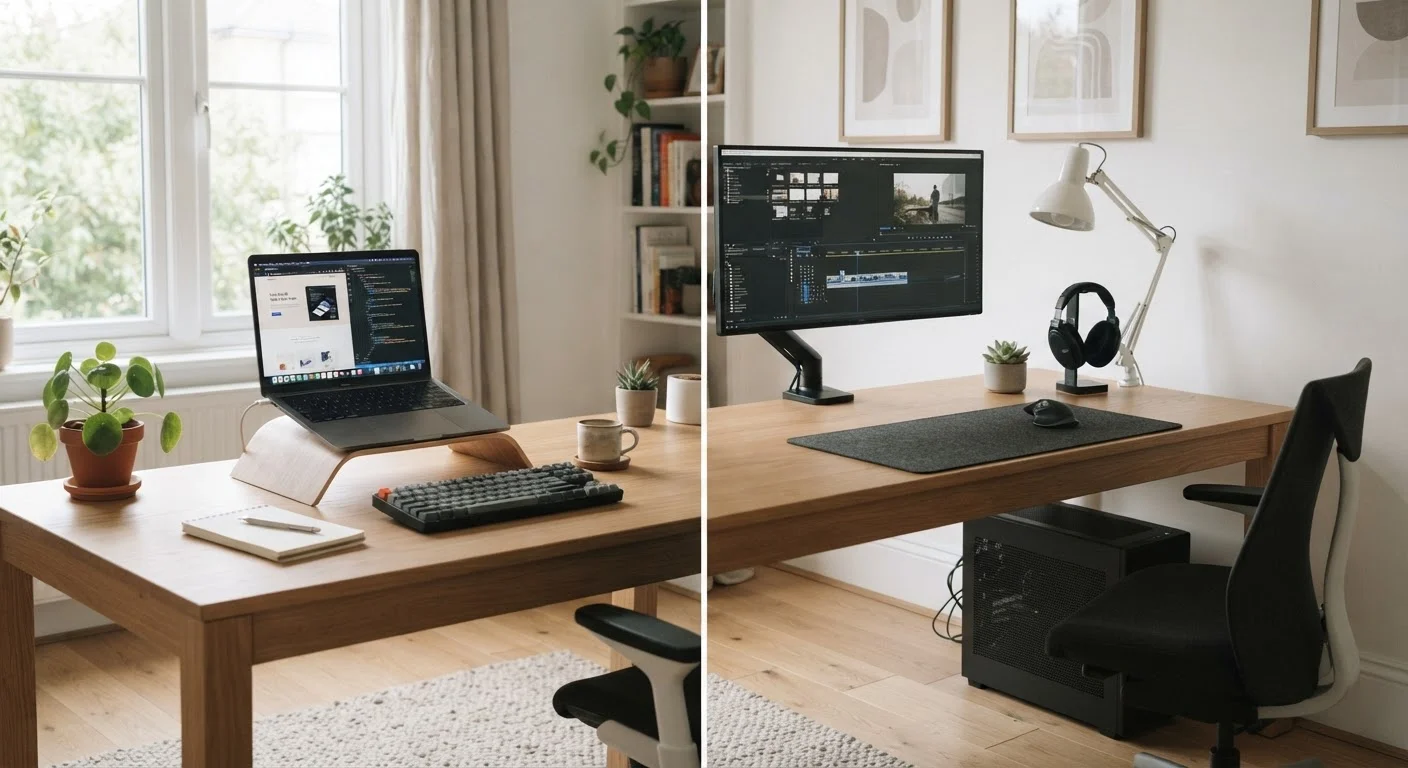
Before diving into processors and RAM, the most important question is simpler: do you need portability? A laptop travels with you; a desktop stays put but typically delivers more performance per dollar at the same price point. Neither is universally superior — the right answer depends entirely on how and where you work.
Laptops now cover nearly every performance tier, from ultra-thin models built for light productivity to heavy-duty machines capable of video editing and 3D modeling. Desktops, meanwhile, tend to be easier to repair and upgrade over time, making them a practical choice for users who plan to keep a machine for many years.
For a deeper look at the trade-offs, see our guide to the laptop-versus-desktop decision — it walks through portability, power, and price without the technical overwhelm.
Think About Where You'll Actually Use It
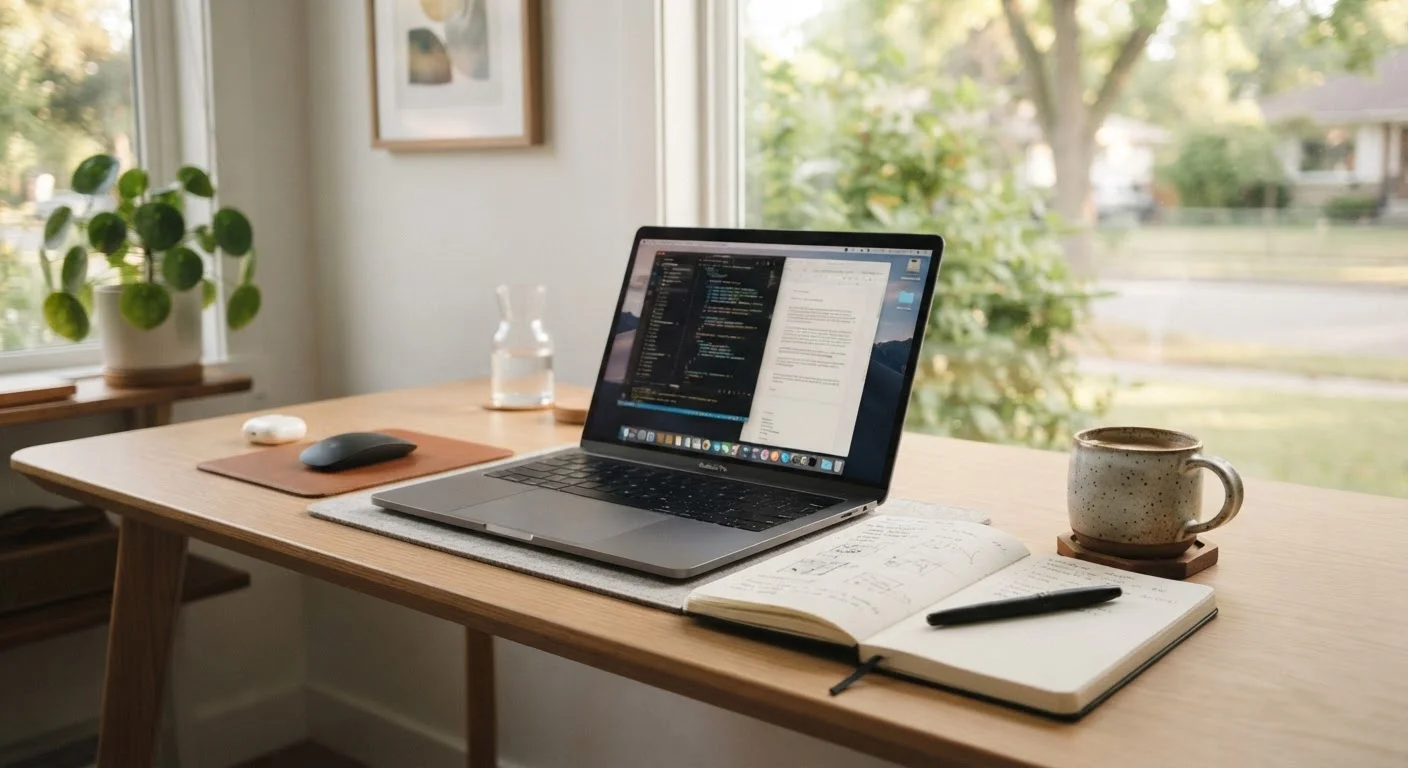
Before comparing specs, spend a few minutes honestly mapping where you use a computer most. If you rarely leave a desk at home, a desktop or large-screen laptop may serve you better than a compact travel model. If you move between rooms, coffee shops, or offices regularly, battery life and weight become primary concerns rather than secondary ones.
Decoding the Specs That Actually Matter
Spec sheets can be intimidating, but only a handful of numbers genuinely affect everyday experience.
- RAM (memory): This determines how many tasks your computer can juggle at once. For general use, 8 GB is a functional minimum; 16 GB gives meaningful breathing room for multitasking and browser-heavy workflows.
- Storage type: A solid-state drive (SSD) makes your computer feel dramatically faster than an older spinning hard drive (HDD) — boot times, app launches, and file access all improve noticeably. Prioritize SSD over raw storage capacity if you must choose.
- Processor (CPU): The chip matters, but mid-range processors from current generations handle most everyday tasks comfortably. Chasing the highest-tier chip rarely pays off unless you do sustained creative or scientific work.
- Display quality: Resolution and brightness matter more than many buyers expect, especially for reading, video calls, and long work sessions. A matte finish reduces glare in bright environments.
16 GB
RAM widely considered the practical standard for multitasking
Industry guidance from major chip manufacturers suggests 16 GB as the comfortable baseline for users running multiple applications simultaneously.
5–7 years
Typical practical lifespan of a consumer computer
This range reflects average hardware durability and software support cycles across major platforms, according to general technology industry estimates.
3×
Speed improvement of SSD over traditional hard drive for boot times
Benchmark comparisons from hardware review outlets consistently show solid-state drives outperforming spinning hard drives by a factor of three or more on startup tasks.
If you find yourself confused by processor naming conventions or GPU tiers, you are not alone — manufacturers update branding frequently, and model numbers rarely translate intuitively to real-world performance.
Choosing an Operating System
The three mainstream operating systems — Windows, macOS, and Chrome OS — each represent a different philosophy about how a computer should work.
- Windows
- The most widely used platform, compatible with the broadest range of software, including specialized professional and creative tools. Updates are frequent, and hardware options span every price range.
- macOS
- Available exclusively on Apple hardware, macOS is known for tight hardware-software integration and a consistent update lifecycle. It pairs well with other Apple devices if you are already in that ecosystem.
- Chrome OS
- Designed primarily around web-based apps and Google's suite of tools. Chromebooks tend to be lightweight, affordable, and low-maintenance — a strong option for students or users whose work lives in a browser.
When evaluating an operating system, start with the software you already rely on — then confirm it runs natively on that platform before committing.
Software compatibility is the most common source of post-purchase regret among switchers. A platform change that forces workarounds or browser-based substitutes for critical tools rarely feels like an upgrade.
Check Chrome OS device support dates at the time of purchase, not after — Chromebooks have some of the shortest published support lifespans among mainstream platforms.
Google publishes an Auto Update Expiration (AUE) date for every Chromebook model. Buying a device close to its AUE means a shorter window of guaranteed security updates, which matters for users who plan to keep a machine several years.
Whatever platform you choose, check the manufacturer's published end-of-support date. An operating system that no longer receives security updates is a meaningful risk, regardless of how well the hardware still performs.
Matching the Machine to Your Household Role
Specs only become meaningful when mapped to real tasks. A machine that is excellent for a graphic designer may be overkill — or the wrong shape entirely — for a middle schooler doing homework.
- Students: Portability, battery life, and durability are usually the priority. A lightweight laptop with at least 8 GB RAM, a full-day battery, and a sturdy build handles classroom and library use well.
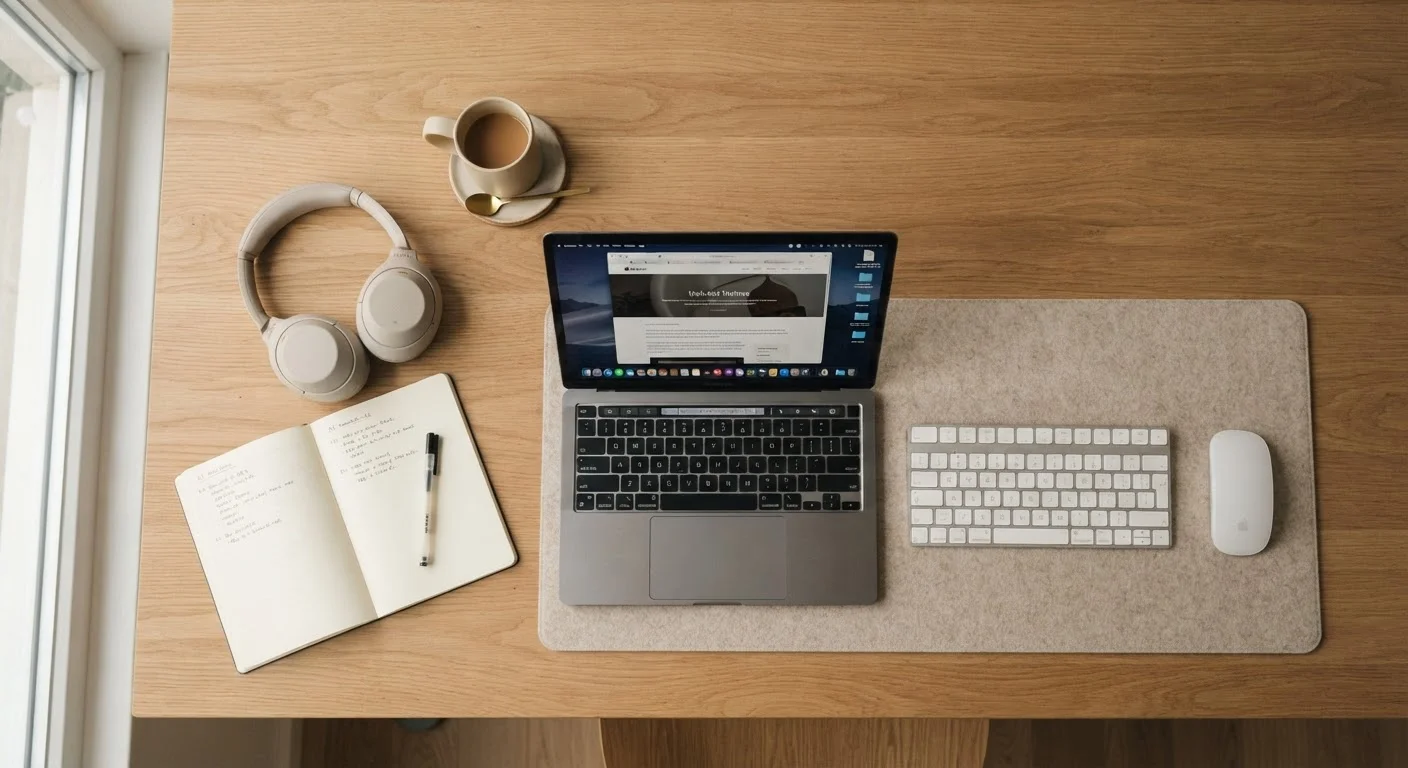
- Remote workers: Webcam quality, microphone performance, and display real estate matter for video-heavy days. A larger screen — or a laptop designed to connect to an external monitor — reduces eye strain over long sessions.
- Casual and household users: Streaming, light browsing, email, and occasional document editing require far less computing power than marketing materials suggest. A modest mid-range machine is almost always sufficient.
Our companion piece on computing needs by household role explores these use cases in more detail, including which specs actually move the needle for each one.
Don't Over-Buy for Occasional Use
It is easy to be swayed by high-end specs you may never need. Paying for a powerful processor or dedicated graphics card makes sense for creative professionals and gamers — but for streaming, email, and document work, mid-range hardware performs identically in practice. Overspending on specs does not translate to a noticeably better experience for light users.
Longevity, Upgrades, and Knowing When to Replace
Most consumer computers have a practical lifespan of five to seven years, though that range depends heavily on how the device is used, maintained, and whether the operating system continues to receive support.
Some machines allow you to add RAM or swap storage — extending useful life at modest cost. Others, particularly thin laptops, solder components to the motherboard, making upgrades impossible. Before purchasing, it is worth confirming which components, if any, are user-serviceable.
Signs that a computer is nearing end of life include: the operating system no longer receiving security updates, inability to run current software versions, or hardware failures that cost more to repair than the machine is worth.
Operating System Support Timelines Vary
Each operating system has a published support lifecycle. Windows, macOS, and Chrome OS all have different schedules for when a version stops receiving security updates — and those dates are not always prominently advertised at point of sale. Before purchasing, look up the support end date for the OS version the device ships with, or verify that it qualifies for the latest version.
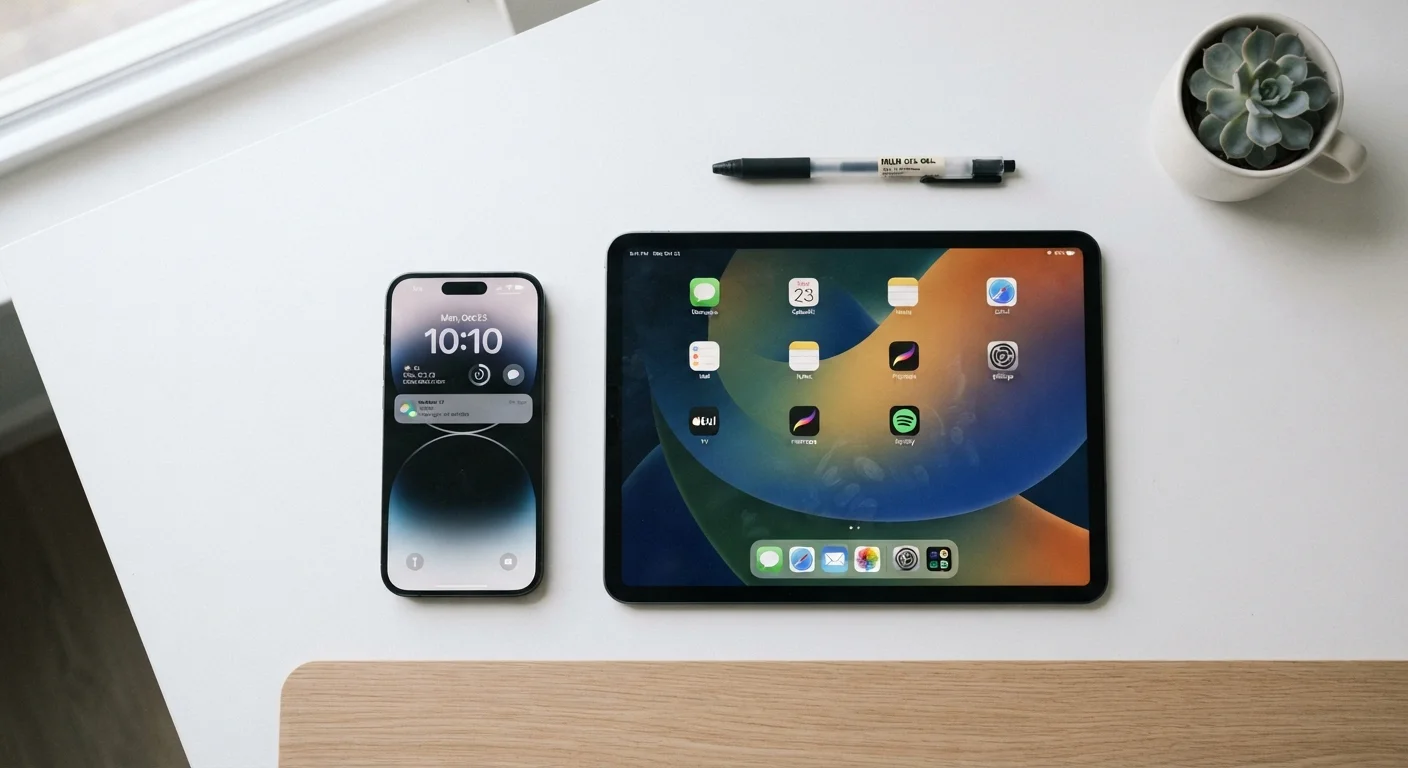
Computers are not the only screen worth evaluating. If you are wondering how laptops and desktops compare to tablets and smartphones for certain tasks, the end-to-end guide for smartphone and tablet buyers covers that territory thoroughly.
Setting Up Your New Computer the Right Way
A thoughtful setup process saves headaches later. The first hour with a new computer is the best time to establish habits that protect your data and privacy going forward.
- Create a strong, unique account password and enable two-factor authentication where available.
- Run all available software updates before installing anything else. Out-of-the-box software is often weeks or months behind on patches.
- Configure automatic backups — either to an external drive or a cloud service — before you start saving important files.
- Review default privacy settings. Many operating systems enable data-sharing features by default; taking fifteen minutes to review these settings is time well spent.
- Transfer your files carefully. Our guide to transferring files and settings walks through moving documents, photos, bookmarks, and account credentials from your old machine without losing anything.
“Most people don't need a faster computer — they need a better-organized one. The machine is rarely the bottleneck; the workflow is.”
— A senior UX researcher in human-computer interaction, Researcher specializing in everyday computing behavior and digital ergonomics
Taking the time to set up a computer correctly from the start is one of the simplest ways to extend its useful life and protect the data that matters most to you.