Buffering Is a Symptom, Not a Verdict on Your Internet Speed
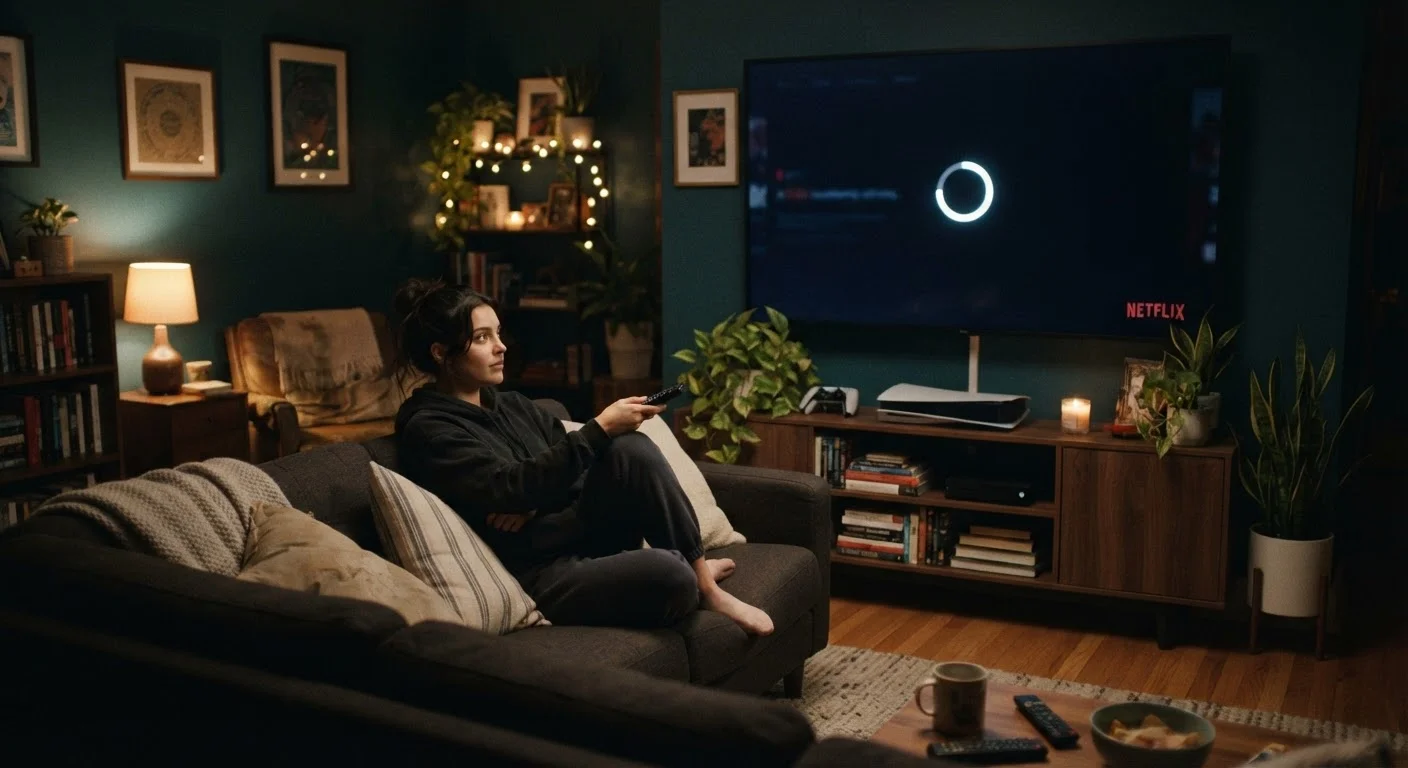
When your smart TV stalls mid-scene, the instinct is to blame your internet provider. Sometimes that's fair — but more often, the real problem lives somewhere between your router and your TV. Buffering happens when your TV can't receive and process video data fast enough to play it smoothly. That gap between delivery and playback has many causes, and most of them are fixable without upgrading your plan or calling your ISP.
Understanding what's actually happening helps you target the right fix. Your TV is constantly making requests to a streaming server, downloading small chunks of video ahead of what you're watching. Any bottleneck — a weak wireless signal, a congested home network, a sluggish DNS lookup — interrupts that flow. The spinning wheel is just the TV's way of waiting for more data to arrive.
For a broader look at how connected devices degrade over time, see why phones slow down over time — many of the same principles apply to smart TVs aging on your home network.
Common Mistakes That Cause Buffering — and How to Fix Them
Most buffering problems come down to a handful of repeated, fixable errors. Identifying which one applies to your setup is the first step toward a smoother experience.
Placing the router too far from the TV, or behind walls and furniture that block the signal.
Why it happens: Routers are often tucked away for aesthetic reasons, without considering how building materials like drywall, concrete, and metal absorb or reflect wireless signals.
Connecting the TV to the 2.4 GHz Wi-Fi band instead of the faster 5 GHz band.
Why it happens: Many TVs default to 2.4 GHz because it has longer range, but the 2.4 GHz band is heavily congested in most homes and apartment buildings, leading to slower, less reliable throughput.
Never rebooting the router or the TV, allowing cached errors and memory leaks to accumulate.
Why it happens: Both routers and smart TVs run persistent software that can degrade over days or weeks without a restart. Most people only reboot when something has already broken badly.
Streaming over Wi-Fi when an Ethernet connection is available.
Why it happens: Wi-Fi is convenient and most TVs are placed far from network equipment, so consumers assume wireless is their only option. Many smart TVs and media players do have Ethernet ports that go unused.
Running too many devices on the same network simultaneously during streaming.
Why it happens: Households have more connected devices than ever — phones, laptops, game consoles, smart speakers — and most people don't think of them as sharing a fixed pool of bandwidth.
Using outdated TV firmware that hasn't been updated in months or years.
Why it happens: Smart TV software updates aren't as visible or urgent-feeling as phone updates, so many users dismiss or ignore them — or don't know how to check for them.
~70%
Buffering issues attributed to local network problems
Industry analysis from network performance researchers consistently finds that the majority of home streaming problems originate on the consumer's local network, not the streaming service's servers.
2–3x
Throughput advantage of 5 GHz over 2.4 GHz Wi-Fi
Under typical home conditions, the 5 GHz Wi-Fi band can deliver two to three times more usable throughput than 2.4 GHz, according to general wireless networking benchmarks.
If your TV's built-in software feels sluggish regardless of your network, it may be worth exploring how streaming sticks compare to built-in platforms over time. Older native software can compound network-related buffering in ways that are hard to separate.
Don't Overlook Your DNS Settings
Your TV uses a DNS (Domain Name System) server to translate streaming service addresses into actual server connections. Many routers ship with slow or unreliable default DNS settings. Switching your router or TV's DNS to a well-maintained public DNS resolver — such as those offered by major networking organizations — can reduce the time it takes to establish streaming connections, particularly if you notice long loading times before video starts. Check your TV's or router's network settings for a DNS field to update this manually.
Good network hygiene also extends to the rest of your connected home. The habits covered in keeping a smart home running well over time — firmware updates, router restarts, device audits — directly support stable TV streaming as well.
When to Look Beyond Your Local Network
Once you've addressed the common local causes, persistent buffering may point to factors outside your control: server-side congestion during peak viewing hours (typically evenings), or throttling by some internet providers during heavy streaming traffic. These are worth being aware of, though they're less common than the local issues described above.
If you're evaluating a new TV purchase and want to make sure the hardware you choose supports strong network performance from the start, the TV buying checklist walks through specs like dual-band Wi-Fi support and Ethernet port availability that directly affect long-term streaming reliability. And if smart lighting dropouts on your home network sound familiar, the same diagnostic logic applies — understanding smart light disconnections shares many root causes with TV buffering.
The bottom line: most buffering is local, fixable, and doesn't require calling anyone. Work through the common mistakes first, and you'll resolve the problem in the majority of cases.