Why Maintenance Habits Matter More Than Specs
Most people retire a laptop not because the hardware fails catastrophically, but because it gradually becomes too slow, too cluttered, or too unreliable to be worth the frustration. The good news: many of those outcomes are preventable. A laptop that's consistently well-maintained can remain genuinely useful for five to seven years — sometimes longer — regardless of its original price point.
If you're still deciding between portability and a stationary setup, our laptop vs. desktop guide breaks down the trade-offs clearly. And if you're setting up a new machine, see what to check before you set up a new computer for a smart starting checklist.
The practices below are organized by how often you should do them — think of this as an ongoing maintenance rhythm, not a one-time checklist.
Everyday and Weekly Habits
Some of the most impactful care happens in small, consistent choices.
Keep internal storage at least 15–20% free at all times.
Operating systems use free disk space to manage temporary files, virtual memory, and background processes. When storage fills up, the system slows noticeably and can become unstable. Staying well below the maximum capacity keeps the OS running as intended.
Avoid keeping your laptop plugged in at 100% charge for extended periods.
Lithium-ion batteries — the type found in virtually all modern laptops — degrade faster when held at maximum charge for long stretches. Many manufacturers now include charge-limiting settings (sometimes called 'battery health mode') that cap charging around 80% to reduce this wear.
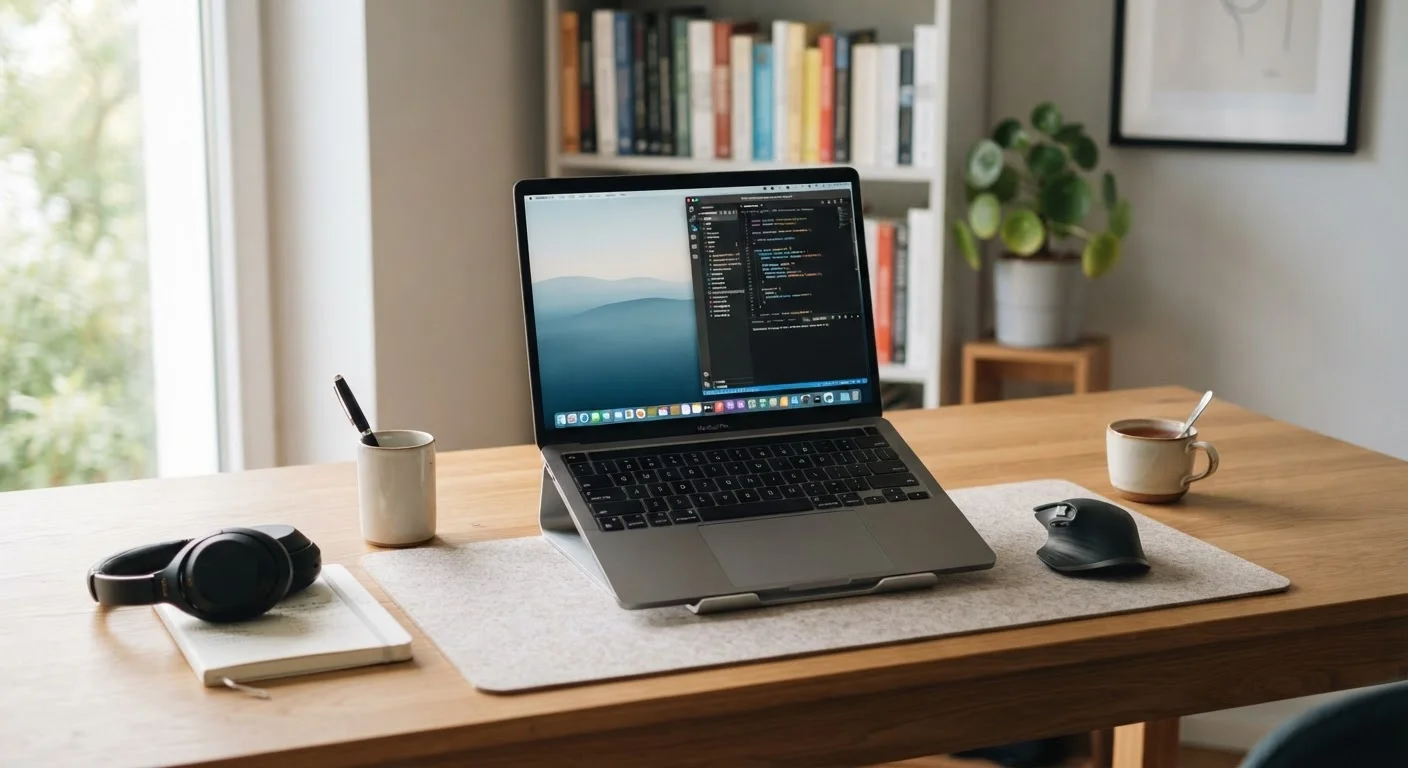
Never block the laptop's ventilation vents during use.
Laptops cool themselves by drawing in cooler air and expelling hot air through dedicated vents — usually on the bottom or sides. Blocking these, such as by using a laptop on a soft surface like a bed or couch, causes the internal temperature to rise, which stresses the processor, graphics chip, and battery.
Restart your laptop at least once a week.
A full restart clears temporary files, applies pending updates, and resets background processes that can accumulate and degrade performance over time. Many users leave laptops in sleep mode indefinitely, which prevents these housekeeping tasks from completing.
Back up your data on a consistent, scheduled basis.
No maintenance habit protects everything else as effectively as a reliable backup. Drive failures, accidental drops, liquid spills, and theft can all result in total data loss if no backup exists. Regular backups convert a potential disaster into a recoverable inconvenience.
Monthly and Occasional Maintenance
Beyond the daily routine, a handful of periodic tasks keep a laptop performing at its peak over the long term.
~3 years
Average laptop replacement cycle for U.S. consumers
Industry analysts have generally estimated that American consumers replace laptops roughly every three years, though well-maintained machines can serve five or more years in practice.
20%+
Performance drop from a full hard drive
Storage and system performance research consistently shows that drives operating above 80–85% capacity can experience measurable slowdowns in read/write speeds and system responsiveness.
Update software and firmware regularly. Operating system updates aren't just about new features — they patch security vulnerabilities and often include stability improvements. Firmware updates (sometimes called BIOS or UEFI updates) address lower-level hardware behavior. Check for these at least once a month, or enable automatic updates where you trust the source.
Clean out dust from vents. A can of compressed air aimed at the laptop's ventilation vents every few months can meaningfully reduce internal temperatures. Overheating is one of the most common causes of accelerated hardware wear, especially for the processor and battery. Work in a well-ventilated area and hold the can upright.
Audit what's installed. Unused applications accumulate quietly. Uninstalling software you no longer need frees up storage, reduces background processes, and can eliminate security risks from outdated programs.
When to Seek Professional Help
If your laptop is consistently running hot even after cleaning the vents and adjusting usage habits, or if the battery drains dramatically faster than it used to, these may be signs that internal components need professional attention. Many manufacturers and independent repair shops offer diagnostics. Catching thermal issues early can prevent more expensive damage later.
For a broader look at what affects a laptop's longevity before you even buy, what no one tells you about buying a cheap laptop explains how build quality and component choices shape long-term durability.
Protecting Your Data Alongside Your Hardware
Maintaining a laptop well also means protecting what's on it. Hardware can be replaced; data often cannot. A consistent backup habit — using an external drive, a cloud service, or both — ensures that a hard drive failure or accidental damage doesn't erase years of work and memories.
Make Backups Automatic, Not Manual
Manual backups are easy to skip when life gets busy. The most reliable approach is to set up a backup process that runs without any action from you — either through scheduled software on an external drive or a cloud service that syncs continuously. Test your backup occasionally by confirming that files actually saved correctly.
The 3-2-1 backup principle is a widely used guideline: keep three copies of your data, on two different types of storage, with one copy stored off-site (such as a cloud service). This isn't required for every user, but it's a useful mental model for thinking about risk.
For more on building smart, sustainable habits around your technology and household systems, see our Smart Home Living hub.
This article provides general informational guidance only. Specific outcomes will vary depending on your laptop model, usage patterns, and operating environment.