Start With What You'll Actually Use It For
The single most common mistake first-time computer buyers make is leading with specs rather than purpose. Before you look at any product page, write down what you plan to do on this machine most days. That list — not processor benchmarks — should guide every decision that follows.
Common use cases break into a few rough buckets:
- Light daily use: Web browsing, email, video calls, streaming, and word processing. These tasks demand the least from hardware.
- School or office work: Spreadsheets, presentations, research, and video conferencing. Moderate requirements, with reliability being more important than raw speed.
- Creative work: Photo editing, video production, music recording, or illustration. These are genuinely demanding and require more capable hardware.
- Gaming: Casual browser-based games versus modern 3D titles have drastically different hardware needs.
Being honest about this list prevents overspending on power you'll never use — and under-buying something that frustrates you within a year.
RAM
Short for Random Access Memory — it's your computer's short-term workspace. More RAM means the computer can handle more tasks at the same time without slowing down.
SSD
Solid-State Drive — a type of storage that saves your files and programs. SSDs are much faster and more durable than older hard drives, making your computer feel quicker overall.
CPU (Processor)
The Central Processing Unit is the computer's main brain. It handles calculations for everything you do, from opening a browser tab to editing a photo.
Operating System (OS)
The core software that runs your computer — examples include Windows, macOS, and Chrome OS. It controls the interface you see and determines which programs you can install.
Bloatware
Pre-installed software that comes loaded on a new computer, often from the manufacturer or retailer. It's typically unnecessary and can use up storage and slow performance.
Form Factor
The physical shape and size category of a computer — such as laptop, desktop tower, or all-in-one. Form factor determines portability, upgradability, and where you can use the device.
Laptop or Desktop: Which Form Factor Fits Your Life?
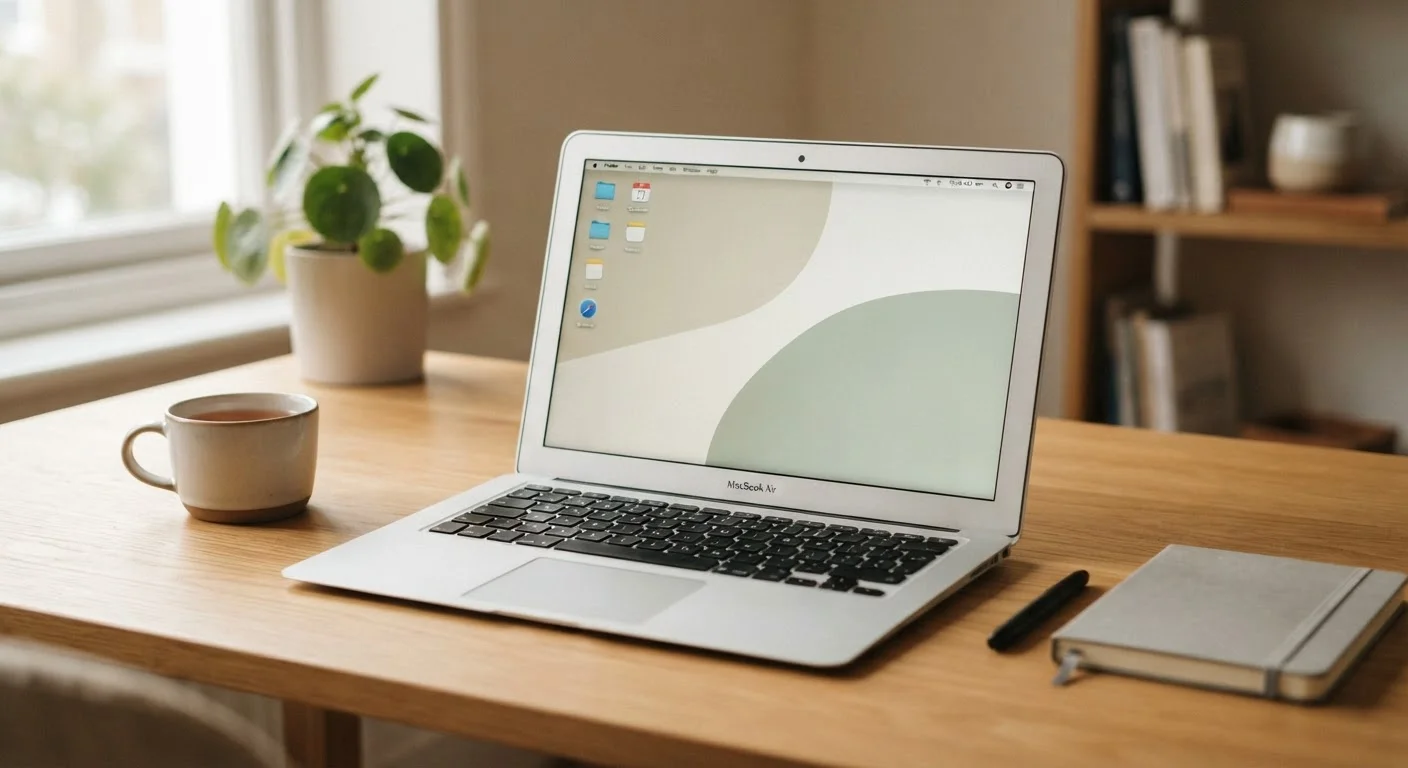
This choice comes down to two practical questions: Where will you use it, and how much do portability and price matter to you?
Laptops let you work anywhere, are self-contained, and have improved significantly in performance. They cost more than equivalent desktops and are harder to upgrade or repair over time.
Desktops typically deliver more processing power and storage for the same dollar amount. They're ideal for a dedicated workspace, easier to upgrade as your needs grow, and generally last longer in terms of repairability. The trade-off is that they're not portable and require a separate monitor, keyboard, and mouse.
If you're genuinely unsure whether a computer is the right device at all, it's worth understanding how laptops differ from tablets before committing — see our first-time tablet buying guide for a side-by-side look at those trade-offs.
Try Before You Commit If Possible
If you have access to a retailer showroom, spending even fifteen minutes using a laptop's keyboard and trackpad in person can reveal comfort issues that no spec sheet mentions. Keyboard feel and screen brightness under real lighting matter more than many buyers expect. This is especially true for anyone who will type for extended periods.
Choosing an Operating System
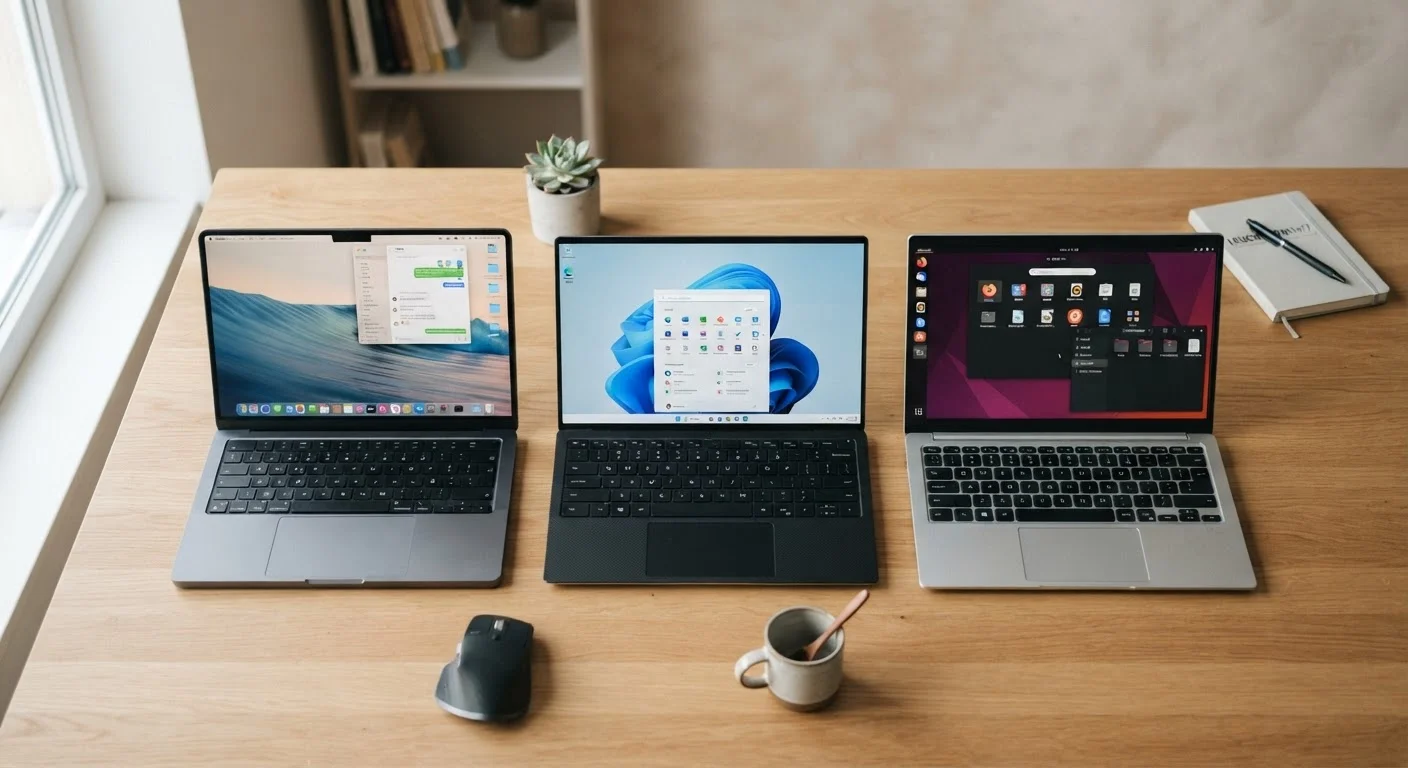
Your operating system (OS) is the software environment that runs everything on your computer. It shapes what programs you can use, how the interface looks, and how your device integrates with your phone and other gadgets. Choosing the right OS is arguably more important than any individual spec.
The three main options for new buyers are:
- Windows: The most widely used OS globally. Compatible with the broadest range of software and hardware. A solid general-purpose choice.
- macOS: Runs exclusively on Apple hardware. Known for a consistent interface and tight integration with iPhones and iPads. Software selection is strong but narrower than Windows.
- Chrome OS: Lightweight and cloud-focused. Works best for users whose needs are mostly web-based. Generally found on lower-priced hardware.
Our dedicated article Chromebook, Windows, or Mac: Understanding the Three Main Ecosystems goes deeper on each platform's strengths, limitations, and who each one suits best.
The Specs That Actually Matter to Everyday Users
Spec sheets can be intimidating, but for most users, only a handful of numbers meaningfully affect day-to-day experience. Here's where to focus your attention:
- RAM (Memory)
- RAM determines how many tasks your computer can handle at once without slowing down. For light use, 8GB is a workable floor. For anything beyond basics, 16GB is a more comfortable target.
- Storage (SSD vs. HDD)
- Solid-state drives (SSDs) are dramatically faster than older hard disk drives (HDDs) and are now standard in most new computers. Look for at least 256GB; 512GB or more gives you space to grow. Speed matters more than raw size for most users.
- Processor (CPU)
- The processor handles all computation. For everyday tasks, any current-generation processor from a mainstream manufacturer is sufficient. Avoid very old or entry-level chip families on machines you plan to keep for several years.
- Display
- Screen size and resolution affect comfort over long use. For laptops, 13–15 inches covers most users well. A full HD (1920×1080) resolution is a reasonable minimum; higher resolutions improve clarity, especially on larger screens.
For a plain-language breakdown of all the terms you'll encounter on product pages, our Computer Specs Glossary is a useful reference to keep open while you shop.
Don't Confuse Storage With Memory
RAM (memory) and storage are two different things that are easy to mix up. RAM is your computer's active workspace — it affects speed and multitasking. Storage is where your files live permanently. A machine can have plenty of storage but too little RAM, and it will still feel slow. Make sure you're checking both numbers separately.
Thinking About Longevity Before You Buy
A computer that barely meets your current needs will likely frustrate you within two to three years. Buying with modest headroom — a little more RAM, a larger SSD — is one of the most cost-effective things you can do at the point of purchase. Upgrading hardware later is often expensive, difficult, or impossible depending on the model.
Also consider software support. Operating systems and security updates have finite lifespans. A machine running an OS that is no longer supported becomes a security risk, regardless of how well the hardware still performs. Check the manufacturer's update support timeline before buying, not after.
If budget is a constraint, our article What No One Tells You About Buying a Cheap Laptop walks through the trade-offs at the lower end of the market honestly — including what to avoid and what can still work well.
What to Do After You Bring It Home
Unboxing a new computer is satisfying, but the first hour of setup matters more than most buyers realize. A few deliberate steps protect your investment and your data from day one.
- Install all available updates immediately. Operating system and security patches are often waiting on day one and shouldn't be deferred.
- Set up a backup system. Whether cloud-based or an external drive, regular backups are the single most effective protection against data loss.
- Configure a strong, unique password and enable any available two-factor authentication on your accounts.
- Remove unnecessary pre-installed software (sometimes called bloatware), which can slow performance and clutter your system.
For a complete post-purchase checklist, see What to Check Before You Set Up a New Computer, which covers account setup, security basics, and backup configuration in detail. And if you're moving from an older machine, Transferring Files and Settings to a New Computer walks you through bringing your documents and settings along.